Why do WordPress scheduled tasks run late? The WP-Cron model
WP-Cron is not a continuously running system task. Because due tasks can run on the next page load, low-traffic sites can experience delays.
A scheduled post that does not publish at the expected time, or a routine task that completes only after someone visits the site, can be confusing. It does not always mean that the task disappeared. WordPress manages these jobs with its WP-Cron scheduling mechanism, and the moment it runs depends on page loads to your site. For that reason, sites with infrequent visits may not run a task at the exact scheduled time. This article helps you diagnose the delay through the WP-Cron operating model. The aim is not to change settings at random, but to understand when a task can be triggered and to consider a system task scheduler only when timing is important.
At a glance
- WP-Cron schedules time-based tasks in WordPress; scheduled post publishing and update checks are examples.
- WP-Cron does not run continuously: it checks the task list during page loads.
- If the site has no page load for a while, due tasks can be delayed and run from the queue at the next opportunity.
- For critical tasks that need to run on time, consider having a system task scheduler send regular web requests to wp-cron.php.
- When a system scheduler is used, also consider disabling WP-Cron page-load triggers to avoid additional server resource usage.
What is WP-Cron and which jobs does it affect?
WP-Cron is the mechanism WordPress uses to manage scheduling for time-based tasks. Core WordPress features such as update checks and publishing scheduled posts use WP-Cron. The issue may therefore appear somewhere other than your content calendar; another time-based WordPress process may also not happen when you expect.
The word cron refers to the idea of running work at set times. However, WP-Cron does not behave like a continuously running system scheduler in a server operating system. Making this distinction first is important for interpreting a delay correctly.
- Publishing scheduled posts is a core task that uses WP-Cron.
- Update checks are also among the core features that use WP-Cron.
Source: [1]
The main reason for a delay: page loads provide the trigger
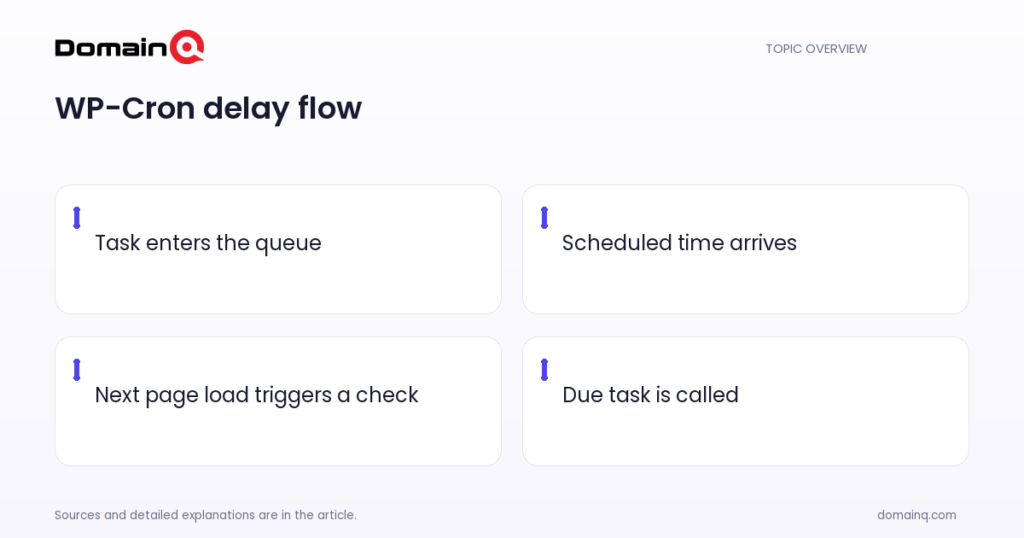
WP-Cron checks the list of scheduled tasks on every page load. Tasks that are due are called during that page load. In other words, WP-Cron is not an independent system process that stays active continuously; a page load triggers it.
Example scenario: suppose a post is scheduled for 2:00 PM. If the site receives no page loads between 2:00 PM and 5:00 PM, the WordPress documentation says scheduling errors can occur. In this example, the delay is explained by the absence of a trigger that would check the task at 2:00 PM.
For diagnosis, begin with this question: did the site receive a page load between the task’s scheduled time and the time you noticed it? If the answer is no, WP-Cron’s page-load-dependent model is a reasonable explanation.
- WP-Cron checks the task list on every page load.
- Due tasks are called during that page load.
- Because WP-Cron does not run continuously, sites with infrequent visits can have scheduling delays.
Source: [1]
Are delayed tasks lost?
According to the WordPress documentation, scheduled WP-Cron tasks enter a queue and are called at the next opportunity: the next page load in the default operating model.
This distinction is useful when reviewing a late scheduled post or another planned process. A task running after a page load can be consistent with WP-Cron processing queued work at the next opportunity. By contrast, relying on the next visitor may not be an appropriate operational choice for a process that must run on time.
- WP-Cron places scheduled tasks into a queue.
- Queued tasks run at the next opportunity, meaning the next page load.
Source: [1]
When should you consider a system task scheduler?
The WordPress documentation says that a system task scheduler can be used for critical tasks that must run on time. In this approach, the server scheduler is configured to send a web request to wp-cron.php at the interval you want or at a specific time. This means triggering WP-Cron no longer depends only on visitor page loads.
This is not an automatic remedy for every delay. First decide whether the task is actually time-sensitive and whether your environment lets you manage a system task scheduler. If timing is not critical, understanding that the delay is associated with low traffic may be sufficient. If timing is critical, planning the scheduler interval or specific run time around the task’s needs can be more appropriate.
macOS and Linux use cron for time-based scheduling. The documentation shows */15 * * * * command for running every 15 minutes. Here, command represents the command to run; verify the actual command and server access method for your environment.
- For critical tasks, a system scheduler can send a web request to wp-cron.php.
- The scheduler can be set for a desired interval or a specific time.
- In macOS and Linux cron format, a task can be set to run every 15 minutes.
Source: [2]
The additional setting after adding a system scheduler
After a system scheduler has been configured to call wp-cron.php regularly, WordPress will still run WP-Cron on page loads by default. The WordPress documentation states that this is no longer necessary and contributes to additional resource usage on the server.
For that reason, people using the system scheduler approach should also address the step of disabling WP-Cron in wp-config.php. The documentation shows the DISABLE_WP_CRON constant being defined with a true value. This setting should not be applied on its own in place of a system scheduler, because it stops WP-Cron from being triggered by page loads.
If you choose wget for the web request, the documentation shows that the –delete-after option can be used with the wget command. Without this option, wget saves the output of the HTTP GET request. Confirm that the request used in a live configuration suits your own site address and server environment.
- After a system scheduler is added, WP-Cron continuing on page loads contributes to additional resource usage.
- WP-Cron can be disabled through the DISABLE_WP_CRON setting in wp-config.php.
- Without –delete-after, wget saves the HTTP GET output.
Source: [2]
Use a calm sequence to diagnose the delay
First, identify whether the late process is actually a task scheduled by WordPress. Scheduled posts and update checks are documented examples that use WP-Cron. Then note the task time and the first page load that happened afterwards. If the task runs after that first load, the observation is consistent with WP-Cron’s documented queue and trigger model.
Next, define the task’s timing sensitivity clearly. If it is acceptable for a process to run several hours later, knowing that it depends on page loads may be enough for operational planning. If it needs to be triggered at a specific time or interval, consider a system task scheduler that sends regular requests to wp-cron.php.
Finally, remember how the two mechanisms behave together. If you decide to use a system scheduler, account for WordPress continuing to run WP-Cron on page loads and the resulting contribution to additional resource usage. Apply the disabling setting only after the external scheduler is in place.
- Compare the scheduled time with the first subsequent page load.
- Define the task’s tolerance for delay.
- Consider a system scheduler for time-critical tasks.
- If an external scheduler is installed, manage WP-Cron page-load execution as well.
Practical checklist
- Identify whether the delayed process is a WordPress scheduled task.
- Check the time between the scheduled run and the first subsequent page load.
- Clarify the task’s tolerance for delay.
- For time-critical tasks, consider a system scheduler request to wp-cron.php.
- If a system scheduler is installed, account for WP-Cron continuing on page loads and its contribution to additional resource usage.
- If disabling WP-Cron, do so after setting up the external scheduler through the wp-config.php setting.
- If using wget and you do not want its output saved, consider the –delete-after option.
The basic explanation for a WP-Cron delay is often simple: WordPress triggers due work from a page load rather than from a continuously running process. On a low-traffic site, a scheduled process may therefore run with the next visit. If your task must run at a specific time or interval, a system task scheduler can start wp-cron.php requests regularly. When making that change, address WP-Cron configuration as well to avoid repeated page-load triggers.
Frequently asked questions
Why might WP-Cron not run at the exact scheduled time?
WP-Cron does not run continuously. It checks the task list on every page load and calls due tasks during that load. A gap between the task time and the next page load can create a delay.
Does WP-Cron retry a delayed task?
According to the WordPress documentation, scheduled WP-Cron tasks enter a queue and are called at the next opportunity, meaning the next page load.
When should I disable WP-Cron?
Consider it after configuring a system task scheduler to send regular web requests to wp-cron.php. In that setup, WordPress continuing to run WP-Cron on every page load can be unnecessary and contributes to additional resource usage.
Sources
[1] Cron – Plugin Handbook | Developer.WordPress.org
[2] Hooking WP-Cron Into the System Task Scheduler – Plugin Handbook | Developer.WordPress.org