How to Diagnose JavaScript Errors When WordPress Menus or Buttons Do Not Work
When menus or buttons do not respond, narrow the issue down systematically, from browser extensions to the full JavaScript console error message.
You click Add Media in the admin area and nothing happens, or a drop-down menu on your site no longer opens. When there is no visible error message, it can be unclear where to begin. The purpose of WordPress JavaScript error debugging is not to blame a plugin or theme immediately. First identify the conditions in which the issue appears, then collect the error information the browser provides. Interactive functionality in WordPress often relies on JavaScript. Broken menus, metaboxes that will not drag and buttons such as Add Media that do not work may be caused by JavaScript errors or conflicts. Browser developer tools can be used to inspect source code and diagnose JavaScript issues.
At a glance
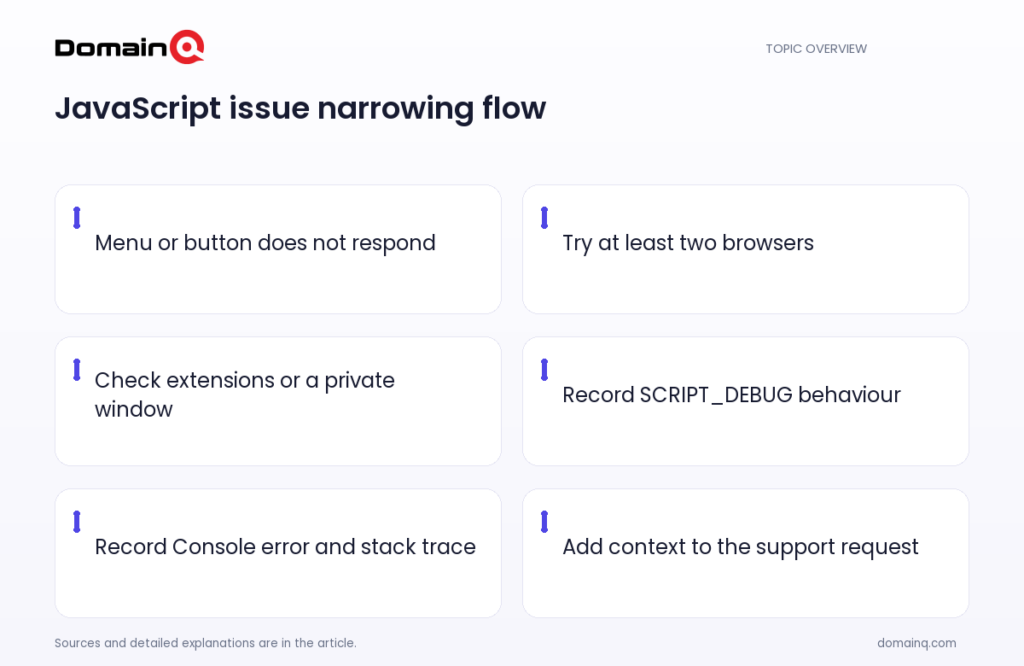
- Broken menus, non-draggable metaboxes and unresponsive buttons can be related to JavaScript errors or conflicts.
- The first useful split is checking whether the same issue appears in at least two browsers.
- Ruling out browser extensions, recording SCRIPT_DEBUG behaviour and collecting complete console information makes a support request more usable.
Start by separating the scope of the problem
The first check is to repeat the same action in at least two browsers. If the problem occurs in only one browser, it may be browser-specific. If it occurs in each browser you tested, a JavaScript or plugin/theme error is more likely.
This distinction is not a final diagnosis. It is an observation that narrows the next investigation. For example, in an example scenario, if Add Media does not respond in one browser but works in another, it makes sense to examine the conditions in the browser where the issue occurs first. If the button does not respond in at least two browsers tested, you need to collect more information in the next checks.
Record clearly which screen is affected and which action produces no result. For example, is it only Add Media in the admin area, only one drop-down menu, or a drag action that does not work? This context helps relate a console error, if one appears, to the affected action.
- Try the same action in at least two browsers.
- Note whether the issue occurs in only one browser or in each browser you tested.
- Identify clearly which screen, menu, button or action does not work.
Disable browser extensions or use a private window
Browser extensions such as ad blockers and privacy tools can interfere with JavaScript. Before investigating WordPress-side possibilities, it is useful to rule out the effect of browser extensions.
Temporarily disable extensions or repeat the same action in a private or incognito window. The aim is to observe whether the behaviour occurs in the normal browser session or also under these conditions. Record the result together with the browser used for the test.
For example, if a menu does not open in a normal window but does open in a private window, that observation means browser extensions should be assessed further. It does not by itself prove which extension is involved or that there is no other WordPress-side issue.
- Observe the issue in the normal browser session.
- Repeat the step after disabling extensions or in a private window.
- If behaviour changes, note the browser and test in which it changed.
Source: [1]
Record the behaviour with SCRIPT_DEBUG
WordPress uses minified JavaScript by default. When SCRIPT_DEBUG is enabled, WordPress loads full, uncompressed JavaScript versions that make errors easier to trace.
This article does not provide configuration steps for enabling SCRIPT_DEBUG. If the setting is enabled on your site, or can be enabled by the person who manages that setting, reload the affected page and repeat the same action. The purpose is to record whether the behaviour changes under this condition.
If the issue is fixed under this condition, SCRIPT_DEBUG should be turned off again and that behaviour should be included in a support request. If the issue persists, continue to the Console tab in browser developer tools. Having the setting enabled does not by itself identify the cause or fix; it is one of the observations to share for support.
- If SCRIPT_DEBUG is enabled, reload the affected page.
- Repeat the same menu, button or drag action.
- If the behaviour is fixed, turn the setting off again and record the result.
- If the behaviour persists, continue with the Console.
Source: [1]
Find the full error message and stack trace in the Console
Modern browsers include developer tools. After opening them, switch to the Console tab. WordPress documentation says browser developer tools can be used to inspect source code and diagnose JavaScript issues, and recommends checking the Console if the error persists.
If no error appears in the Console at first, reload the page. Some JavaScript errors occur only while the page is loading. Then repeat the action that triggers the problem: open the broken menu, click Add Media, or use another control that does not respond.
Do not record only the line number. Copy the full error message and the stack trace together. Also note the name of the file where the error appears and its line number. In the WordPress documentation, this information may appear in a form such as jquery.js:2. Share these records with the context explaining which action produced the issue.
- Open developer tools and switch to the Console tab.
- Reload the page if no error appears.
- Repeat the action that triggers the issue.
- Copy the full error message and stack trace.
- Note the file name and line number.
Prepare a support request with the necessary context
For someone else to investigate a JavaScript issue, brief but complete context is needed. Rather than writing “the button does not work,” include the browsers in which the issue was reproduced, the action that triggers it, and what appears in the Console.
A support request should include the browsers where the issue occurs, whether enabling SCRIPT_DEBUG changed the behaviour, and the full JavaScript error message and stack trace. Include the error file name and line number, the action that triggered the error and, if possible, a link to the affected page in the same request.
An example report can be structured as follows: the issue occurs when clicking Add Media in the admin area; results from tests in at least two browsers are recorded; it states whether SCRIPT_DEBUG changed the behaviour; the full Console error message and stack trace are included; and the file and line information are noted. This is not a claim that it solves the issue. It is a way to present observations in an orderly form.
- List the browsers where the issue occurs.
- State whether SCRIPT_DEBUG changed the behaviour.
- Include the full error message and stack trace.
- Record the file name and line number.
- Describe the action that triggers the error.
- Include a link to the affected page where possible.
Source: [1]
Practical checklist
- I tried the same issue in at least two browsers.
- I noted whether it occurs in only one browser or in each browser I tested.
- I tried again after disabling browser extensions or in a private window.
- If SCRIPT_DEBUG was enabled, I recorded whether the behaviour changed.
- I opened the Console tab in developer tools.
- I reloaded the page when no error appeared.
- I copied the full error message and stack trace.
- I noted the file name, line number and action that triggered the error.
An unresponsive WordPress menu or button does not, by itself, identify the source of the problem. Trying the same action in at least two browsers, ruling out browser extensions, recording behaviour with SCRIPT_DEBUG and collecting complete Console information reduces uncertainty. This order helps you investigate JavaScript-related interaction issues in both the front end and the admin area more systematically.
Frequently asked questions
What does it mean if the issue occurs in only one browser?
It may be browser-specific. Because browser extensions can also interfere with JavaScript, trying again with extensions disabled or in a private window can help rule out that possibility.
What should I do if no error appears in the Console?
Reload the page. Some JavaScript errors occur only during page load. Then repeat the action that triggers the problem.
Is the error line number alone enough for a support request?
No. Copy the full error message and stack trace. Also include the file name, line number, triggering action, browsers where the issue occurs and the SCRIPT_DEBUG behaviour.
Sources
[2] Debugging WordPress – Advanced Administration Handbook | Developer.WordPress.org