What to Consider When Choosing WordPress User Roles
Match each WordPress account to the work it needs to do, without granting more access than necessary.
Updated: 5 October 2026
Giving an administrator account to someone who only needs to review a post, or preventing a content writer from publishing their own post, are two common WordPress administration problems. WordPress user roles determine which actions each account can and cannot take on the site. The useful question is therefore not “What is this person’s title?” but “What work does this person need to complete on the site?” Matching the role to the task helps avoid both unnecessary restrictions and unnecessarily broad access.
At a glance
- A role determines what a user can and cannot do within a WordPress site.
- Choose a role based on the person’s actual site responsibility, not their job title.
- Check the publishing and content-management limits of default roles, and grant only required capabilities when adding custom access.
- Administrator and Super Admin do not have the same scope in a Multisite installation.
The short answer: define the task before the role
In WordPress, a role is a framework of allowed tasks for a user. WordPress has six predefined roles: Super Admin, Administrator, Editor, Author, Contributor, and Subscriber. These roles should not generally be treated as ranks above or below one another; each one defines a different responsibility within the site.
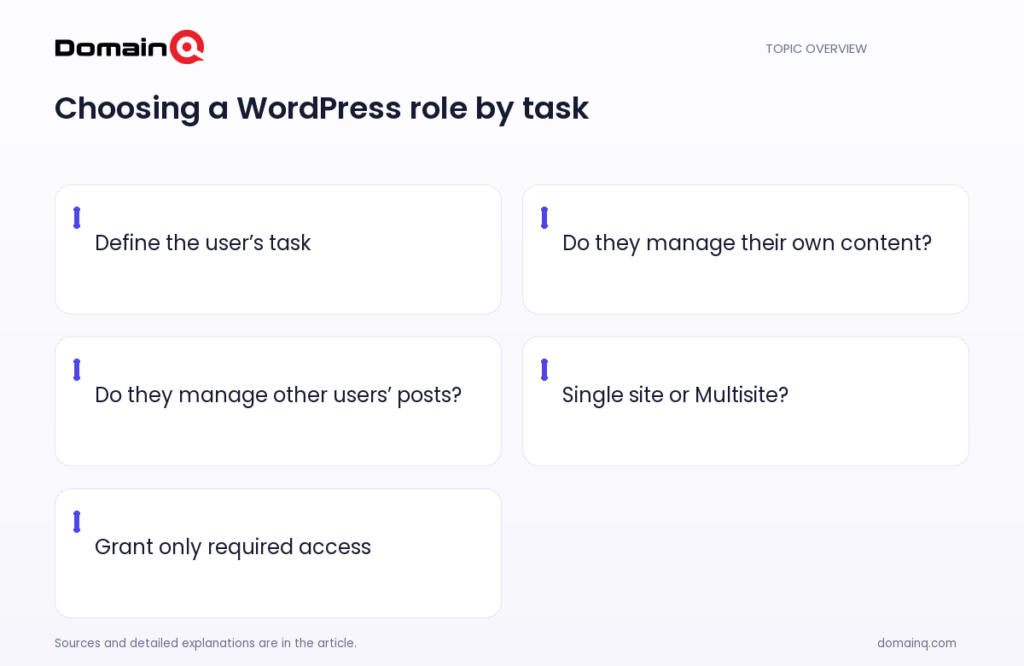
When selecting a role, first write down the actions the user actually needs to take. Will they prepare their own post? Will they publish it themselves? Do they need to manage posts written by other people? Or do they only need to update their profile information? The answers make it easier to identify the appropriate content role.
If a need involves administrative access, also distinguish whether your WordPress setup is a single site or Multisite. In a single-site WordPress installation, an Administrator has access to all administration features. In Multisite, additional administrative capabilities such as plugin, theme, and core updates belong only to the Super Admin.
- List the user’s expected day-to-day tasks.
- Select the default role that covers only those tasks.
- Always take the installation type, single site or Multisite, into account.
- Review the role again if the person’s responsibilities change.
Source: [1]
Four core roles for people creating content
An Editor can publish and manage posts, including posts created by other users. Consider this role for someone who must also manage other people’s work as part of the content process. For example, a person overseeing an editorial process may be a fit for the Editor role if they need to manage drafts and published posts across the team.
An Author can publish and manage only their own posts. Example scenario: the Author role can be considered for a team member who regularly publishes content under their own name but does not need to work with other writers’ posts.
A Contributor can write and manage their own posts but cannot publish them. This boundary can be useful in a content workflow where the person preparing a post is different from the person deciding to publish it. For example, one person can prepare the text as a draft while another person with the Editor role publishes it.
A Subscriber can only manage their own profile. It is therefore not suitable for someone expected to write content, publish it, or manage other users’ content. When choosing a role, check not only its name but whether the user’s work truly matches these defined responsibilities.
- Consider Editor when publishing and managing other users’ posts is required.
- Consider Author for someone who will publish only their own posts.
- Consider Contributor for someone who prepares their own post without needing publishing permission.
- Consider Subscriber for an account that only needs profile management.
Source: [1]
Make the Administrator and Super Admin distinction correctly
Administrator and Super Admin are associated with administrative responsibilities rather than content roles. However, it is not correct to assume that the two names describe the same access. WordPress documentation states that, in single-site installations, an Administrator has access to all administration features.
Multisite is a setup in which multiple sites are managed within the same WordPress installation. In this setup, additional administrative capabilities such as plugin, theme, and core updates belong only to the Super Admin. For this reason, in a Multisite environment, separate an ordinary site-management need from a network-level administration need.
Example scenario: if a team member needs to publish content, first consider content roles such as Editor, Author, or Contributor that match that responsibility. If the need genuinely requires access to administration features, assess the distinction between Administrator and, where appropriate in a Multisite environment, Super Admin together with the installation type.
- On a single site, an Administrator has access to all administration features.
- In a Multisite environment, additional administrative capabilities belong to the Super Admin.
- Do not treat an administrative role as the default choice when a content role can meet the need.
Source: [1]
Check the default role
You can set the role assigned to new users in WordPress Administration Screens under Settings > General. Because this setting determines the starting role for new users, it should be reviewed carefully, especially on sites that use user registration.
Before changing this setting, identify what a new user is expected to do on the site. A person who only needs to manage a profile does not have the same need as one expected to create content. The default role should support choosing the narrowest appropriate starting point instead of granting broad access to every new account.
In practice, make this check part of the account-creation process: record the new user’s responsibility, verify that the selected role matches that responsibility, and review the assignment if the user takes on a different role. This keeps the decision tied to the person’s site responsibility rather than their username or general position in the team.
- Check the default new-user role under Settings > General.
- Identify the expected task for each new user before registration.
- Regularly assess whether the default role is truly appropriate for every new user.
Source: [1]
Keep boundaries when adding custom roles and capabilities
When default roles do not meet a need, you may consider creating a custom role or adding a capability to an existing role. WordPress gives a clear recommendation: grant no more capabilities than are required for the tasks the role is intended to perform. This principle is the basic test for decisions about custom roles.
The edit_theme_options capability is not limited to the Site Editor; it may also grant access to other theme-related administrative functionality. Assess each capability alongside the specific work the user needs to do. [Source]
The unfiltered_html capability allows a user to publish HTML and even JavaScript in pages, posts, comments, and widgets. WordPress documentation warns that enabling this option for untrusted users may result in malicious or poorly formatted code being posted. Do not add this capability unless it is clearly required by the user’s task.
Example scenario: if a user will prepare a content draft, first check whether a content role such as Contributor or Author is sufficient. If you consider adding a custom capability, identify which task cannot be completed with the existing role and assess only the capability required for that task.
- Define the intended work of a custom role in writing.
- For every added capability, verify which task makes it necessary.
- Account for the fact that edit_theme_options is not limited to the Site Editor and may grant access to other theme-related administrative functionality. [Source]
- Do not grant unfiltered_html to untrusted users.
Source: [1]
Practical checklist
- Write down each action the user needs to take on the site.
- Choose the default role that covers those actions.
- Check separately whether the user needs to manage other people’s posts.
- Determine whether the user should be able to publish their own post.
- Confirm whether the installation is single-site or Multisite.
- Review the default new-user role in Settings > General.
- When creating a custom role or adding a capability, add only what is necessary.
- Account for the fact that edit_theme_options is not limited to the Site Editor and may grant access to other theme-related administrative functionality; unfiltered_html permits publishing HTML and JavaScript. [Source]
A safe and understandable choice of WordPress user role starts with accurately defining the user’s responsibility, not with granting the broadest role. Check the limits of Editor, Author, Contributor, and Subscriber for content work, and distinguish between single-site and Multisite setups for administrative work. When a custom role or additional capability is needed, grant only what the intended work requires.
Frequently asked questions
What is the main difference between Editor and Author?
An Editor can publish and manage posts, including posts written by other users. An Author can publish and manage only their own posts.
Why cannot a Contributor publish their post?
The Contributor role allows a user to write and manage their own posts, but its default definition does not grant publishing permission.
Does an Administrator have the same capabilities as a Super Admin in Multisite?
No. According to WordPress documentation, in Multisite, additional administrative capabilities such as plugin, theme, and core updates belong only to the Super Admin.
Why should unfiltered_html be handled carefully?
This capability allows HTML and even JavaScript to be published in pages, posts, comments, and widgets. Granting it to untrusted users may result in malicious or poorly formatted code being posted.