Which Permission Should You Check When a WordPress User Role Is Not Enough?
When a user sees a permission error, the issue may not be the role name alone. Check the capability required for the action and the site setup type.
A user may be able to prepare posts but not edit a user account, install a plugin, or save a change in the Site Editor. The usual reaction is to assign a “higher” role. That can grant more access than necessary and hide the real issue. For a WordPress user permission check, the better question is: which specific action is the user trying to complete, and which capability—an individual permission for an action—does it require?
At a glance
- A role defines a user’s set of responsibilities and tasks; individual action permissions are called capabilities.
- A role name does not make one role inherently senior to another. Diagnose the blocked action and the capability it needs.
- On a single site, some administrative capabilities belong only to Administrators; on Multisite, they belong only to Super Admins.
- For the Site Editor, edit_theme_options is the primary access capability, but other capabilities may be needed for the content being edited.
What is the difference between a role and a capability?
In WordPress, a role defines a set of tasks a user can perform. The individual permissions that enable those tasks are called capabilities. Examples include publish_posts, moderate_comments, and edit_users.
For that reason, asking only whether an Editor role is sufficient is not always enough to diagnose a problem. When a user cannot complete an action, identify the capability required for that action before focusing on the role name. Roles have a default set of capabilities, and capabilities can be added or removed with the add_cap() and remove_cap() functions.
Do not treat roles as a seniority ranking. According to the WordPress documentation, roles define responsibilities within the site. Even if a role name appears more senior, that does not mean it includes the specific permission the user needs.
- State the blocked action clearly, such as installing a plugin, editing a user, or saving a template.
- Then check the capability required for that action.
- Adding or removing a capability is different from changing the role name.
Source: [1]
First identify the setup: single site or Multisite?
Some administrative capabilities are assigned differently depending on the installation type. In a single-site WordPress installation, only the Administrator role has these additional administrative capabilities. In Multisite, those capabilities belong only to the Super Admin.
This distinction matters for actions such as installing plugins or themes, updating WordPress core, and editing users. Even if the user has an administrator role, they may not have the required permissions for these actions in Multisite unless they are a Super Admin.
Example scenario: A site administrator in a Multisite installation tries to install a plugin and the action is blocked. Rather than changing the role name alone, check that this action is among the administrative capabilities reserved for a Super Admin in Multisite.
- Installing or deleting plugins
- Installing, deleting, or editing themes
- Updating WordPress core, plugins, or themes
- Editing users
Source: [1]
When the Site Editor opens but sections will not load or save
For Site Editor access, the primary capability WordPress checks is edit_theme_options. This permission is central to allowing a user to access and manage templates through the Site Editor. However, other capabilities may also be required depending on the types of content the user is expected to edit.
If a user can open the Site Editor but some areas do not load or changes do not save, inspect REST API requests in the browser’s developer tools. Requests returning 401 Unauthorized or 403 Forbidden can indicate that a permission check has failed.
The error code and message in the REST API response can indicate which permission check failed for that endpoint. This can help identify a capability the role may be missing for that particular endpoint. It lets you investigate the issue at the action level instead of granting broad access at random.
Do not view adding edit_theme_options as Site Editor access only. This capability can also provide access to other theme-related administrative functionality. Consider that broader scope before making a permission change.
- Check edit_theme_options for Site Editor access.
- If loading or saving fails, inspect REST API requests in developer tools.
- Read the error code and message for 401 Unauthorized and 403 Forbidden responses.
- Before adding a capability, consider that its access may not be limited to the target screen.
Source: [1]
Capabilities that need particular security attention
Resolving a missing capability does not mean granting every permission. The WordPress documentation states that unfiltered_html allows a user to publish HTML markup and even JavaScript code in pages, posts, comments, and widgets. Granting it to untrusted users can create a risk of malicious or poorly formatted code being posted.
The unfiltered_upload capability is not assigned to any role by default, including Super Admin. If you are considering unusual upload access for a user, recognise that it sits outside the default role structure.
A practical approach is to assess only the capability needed for the user’s work. After resolving the issue, check again whether the added access extends into other areas, such as theme administration, user management, or publishing code.
- Do not grant unfiltered_html to untrusted users.
- Keep in mind that unfiltered_upload is not included in any role by default.
- Before adding a broad capability, consider which administrative areas it may affect.
Source: [1]
A short sequence for diagnosing a capability issue
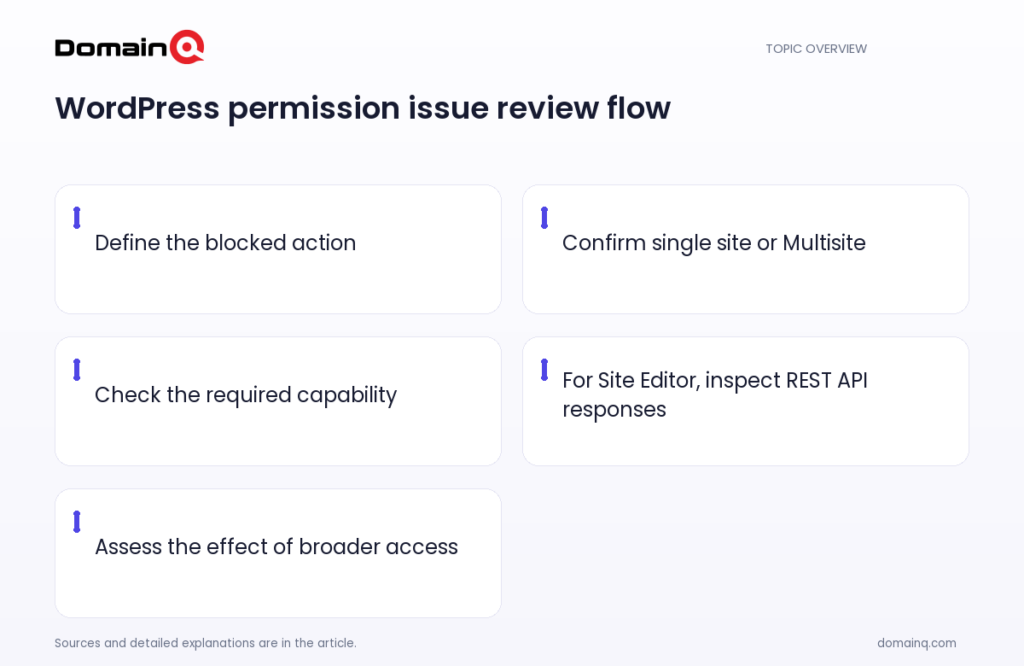
When a permission issue appears, the goal is not to move the user to the highest role. Start by clarifying the blocked action, then identify whether the site is single-site or Multisite, and then examine the relevant capability. This sequence follows WordPress’s permission model instead of making assumptions from role names.
You can also use the guide What to Consider When Choosing WordPress User Roles when creating accounts with roles suited to their tasks. That guide focuses on role selection, while the sequence here helps investigate why an existing role cannot complete a particular action.
- Record the action the user cannot complete.
- Confirm whether the setup is single-site or Multisite.
- Identify the capability associated with the action.
- For Site Editor issues, inspect REST API error responses.
- If access is added, reassess the broader result of that permission.
Source: [1]
Practical checklist
- Define the action the user cannot complete.
- Do not interpret role names as a seniority hierarchy.
- Check the capability needed for the action.
- Confirm whether the installation is single-site or Multisite.
- For plugin, theme, update, and user-editing actions, check the Administrator or Super Admin boundary.
- For Site Editor issues, inspect edit_theme_options and REST API error responses.
- Evaluate broad capabilities carefully, especially unfiltered_html.
- Remember that unfiltered_upload is not assigned to any role by default.
In WordPress, a role is the responsibility framework, while a capability is permission to perform a specific action. When a user cannot complete a task, check the blocked action, the installation type, and the required capability before raising the role. In particular, consider the Super Admin boundary in Multisite, the scope of edit_theme_options in the Site Editor, and the security effect of capabilities that provide broad access.
Frequently asked questions
Can a WordPress Administrator always complete every action?
No. In a single-site installation, the additional administrative capabilities belong to the Administrator. In Multisite, those capabilities belong only to the Super Admin.
Is edit_theme_options alone enough for the Site Editor?
edit_theme_options is the primary capability WordPress checks for Site Editor access and template management. Other capabilities may be needed depending on the types of content the user is expected to edit.
Is it safe to grant unfiltered_html to a user?
This capability allows HTML and JavaScript code to be published in pages, posts, comments, and widgets. The WordPress documentation warns that granting it to untrusted users can risk malicious or poorly formatted code.