How to Check a WordPress Backup Set for Restoration
Prepare a WordPress backup for restoration by checking the files, a separate database export, and the time alignment between both parts.
When something goes wrong, having an archive file available can be useful, but it may not be immediately clear which part of your WordPress site that archive covers. In a typical WordPress site, files on the web server and the database are separate parts. This article does not claim to perform or describe a live restoration test. Instead, it explains how to identify the backup components needed for restoration. Clarifying the file backup, a separate database export, and the restoration order in advance makes the scope of the backup set easier to understand.
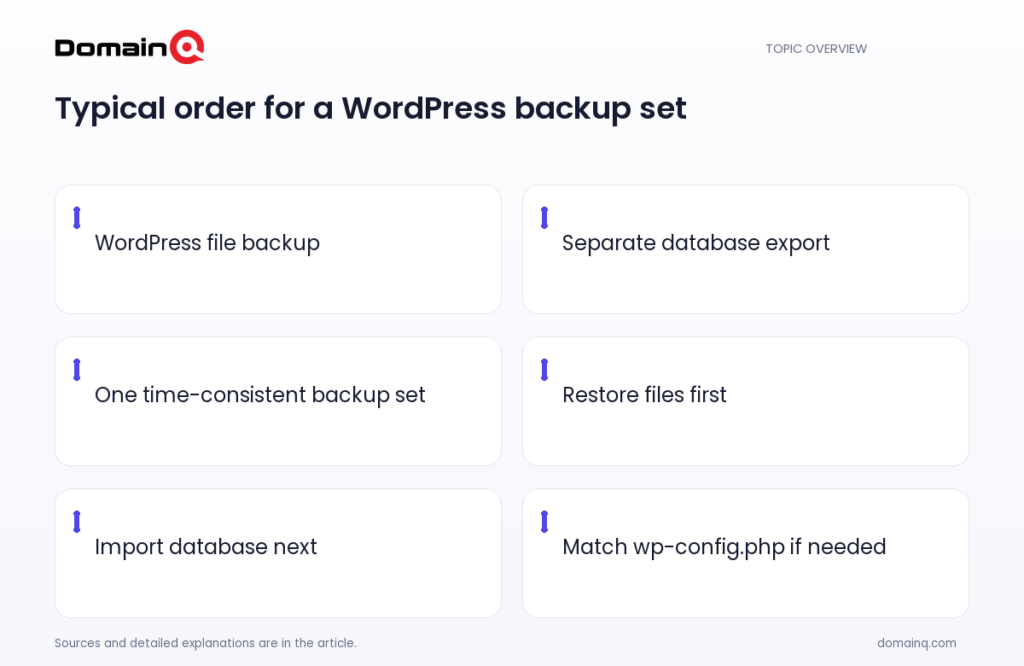
At a glance
- A complete restoration of a typical WordPress site requires both a file backup and a database backup.
- Downloading the WordPress directory does not usually back up the database, which is in a separate MySQL or MariaDB system.
- Match the file backup and database export as one backup set created around the same time.
- In the documented typical order, restore WordPress files first and then restore or import the database.
Look for both parts needed for a complete restoration
A typical WordPress site needs two backup components for a full restoration: the database and the files. A WordPress folder archive on its own, or a database export on its own, should therefore not be considered sufficient to bring back a typical site in full.
The file backup covers the contents of the WordPress directory on the web server. This includes WordPress core, themes, plugins, uploaded files, wp-config.php, and .htaccess. The database contains posts and much of the data generated on the site, but it does not contain those file elements that contribute to the site’s appearance and information.
This distinction offers a simple starting point for classifying backups. When reviewing a set, identify the file side and the database side separately, then consider whether they belong together for the same restoration purpose.
- Look for WordPress directory contents in the file backup.
- Identify a separately created database export or dump.
- Keep the files and database as components of the same restoration set.
Source: [1]
Separate the database export from the file archive
The WordPress database is usually held in a separate database system called MySQL or MariaDB. Downloading the WordPress directory therefore does not usually back up the database in a typical setup. Even when a file archive appears extensive, the database may be outside that archive.
A database backup is commonly created as an export or dump file. .sql, .gz, and .bz2 are example file extensions given in the WordPress documentation; the list does not mean database exports exist only in those formats. Such an export file can be stored alongside file backups. However, restoration still requires importing the dump into MySQL or MariaDB.
Example scenario: you have a file archive containing theme, plugin, and uploads folders, together with a database export identified as being from the same period. You can match these two separate parts under one set. If it is unclear which file or location holds the database export, do not assume that the file archive includes it; identify the database component separately.
- Do not treat a file archive as automatically being a database backup.
- Identify the database export as a separate backup item.
- Add importing the database dump into MySQL or MariaDB to the restoration plan.
Source: [1]
Match the parts as one time-consistent set
Even when files and a database are both available, it is important to handle them consistently. The WordPress documentation recommends treating files and the database as one backup set created around the same time. This lets you match a file and database backup that were clearly created together instead of pairing two parts from very different times at random.
To make the pairing visible, you can name or store the file backup and database export for each set together. This is not a technical requirement; it is an organizational method that can help prevent confusion about which two parts are intended for the same set.
Back up the WordPress database regularly, and also before an upgrade or a move to a new location. At those times, also check that the file and database components belong to the same backup set. [Source]
- Match file and database components created around the same time.
- Use an arrangement that lets you identify both parts of each set together.
- Back up the database regularly, and also before an upgrade or a move to a new location. [Source]
Source: [1]
Write down the restoration order and configuration match
The documented typical restoration order is to restore the WordPress files first, then restore or import the database. Keeping this order with the backup set makes clear which component is used at each stage.
If database credentials changed during a migration, wp-config.php needs to be updated to match those credentials. wp-config.php is among the WordPress directory items in the file backup. When reviewing the file side, account for this configuration file as part of the coverage.
This plan does not replace the backup and does not by itself show the result of an actual restoration. It does, however, bring together the source-described elements: the file backup, the database export, a time-matched set, the typical restoration order, and wp-config.php updates where needed.
- Write down restoring WordPress files first.
- Then add the step to restore the database or import it into MySQL or MariaDB.
- If credentials change, specify the step to match wp-config.php to them.
Source: [1]
Practical checklist
- Identify that the file backup covers WordPress directory contents such as core, themes, plugins, uploaded files, wp-config.php, and .htaccess.
- Identify a database export or dump separate from the file backup.
- Remember that .sql, .gz, and .bz2 are only example extensions for export files.
- Match the file and database components as one backup set created around the same time.
- Note the typical restoration order: files first, then the database.
- Add the step to update wp-config.php if database credentials change.
- Back up the database regularly, and also before an upgrade or a move to a new location; check that the file and database components belong to the same set. [Source]
When preparing for a WordPress restoration, do not rely on one archive name alone. Identify the two components together: WordPress files and a separate database export. Match them as one set created around the same time, and note the order of restoring files first and the database afterward. If database credentials change during a migration, include matching wp-config.php in the plan.
Frequently asked questions
Does downloading only the WordPress files create a complete backup?
No, not for a typical WordPress site. The database is usually in a separate MySQL or MariaDB system, and downloading the WordPress directory does not usually back it up. A complete restoration needs both files and the database.
What happens to the database export during restoration?
A database backup is commonly an export or dump file. To restore it, the file needs to be imported into MySQL or MariaDB. .sql, .gz, and .bz2 are example extensions given in the documentation for such files.
Why should file and database backups be handled as one set?
To help keep backups consistent, it is recommended to treat the files and database as one backup set created around the same time.
Sources
[1] Backups – Advanced Administration Handbook | Developer.WordPress.org