Where Should WordPress Backups Be Stored? Local and Remote Copies
Keep WordPress file and database backups as one backup set, then store current copies in more than one location.
Seeing a backup in a hosting panel can feel reassuring when something goes wrong. But if that copy exists only on the same server, your site files and database remain dependent on one location. Downloading your WordPress directory to a computer does not usually mean that you have also saved the database. The practical answer to where to store WordPress backups is to handle files and the database together, then distribute current copies across more than one location.
At a glance
- A complete restoration of a typical WordPress site requires both a file backup and a database backup.
- Downloading only the WordPress directory usually does not include the database, which is commonly stored in a separate system.
- Keeping 3–5 recent backups across locations such as the hosting server, cloud storage, and a local computer reduces dependence on one place.
- Treating closely timed file and database copies as one backup set clarifies which parts belong together.
Start by separating the two parts of a backup set
A typical WordPress site needs two parts for a full restoration: files and the database. Files can include the WordPress core, themes, plugins, and uploaded content. The database is the part WordPress keeps in a separate database system, usually MySQL or MariaDB.
This distinction directly affects your storage plan. You can copy the WordPress directory to a folder on your computer with an FTP client or UNIX shell, but the database normally lives outside that directory. Therefore, downloading the directory alone is not a complete WordPress backup.
A database backup is usually an export or dump file with an extension such as sql, gz, or bz2. You can store that export alongside the file backup. During restoration, however, the file still needs to be imported back into MySQL or MariaDB. Keeping it visible and matched to its related file copy makes it easier to identify the parts that belong together.
- File copy: Content copied from the WordPress directory.
- Database export: An export taken from the separate database system.
- Backup set: The file and database parts created at roughly the same time.
Source: [1]
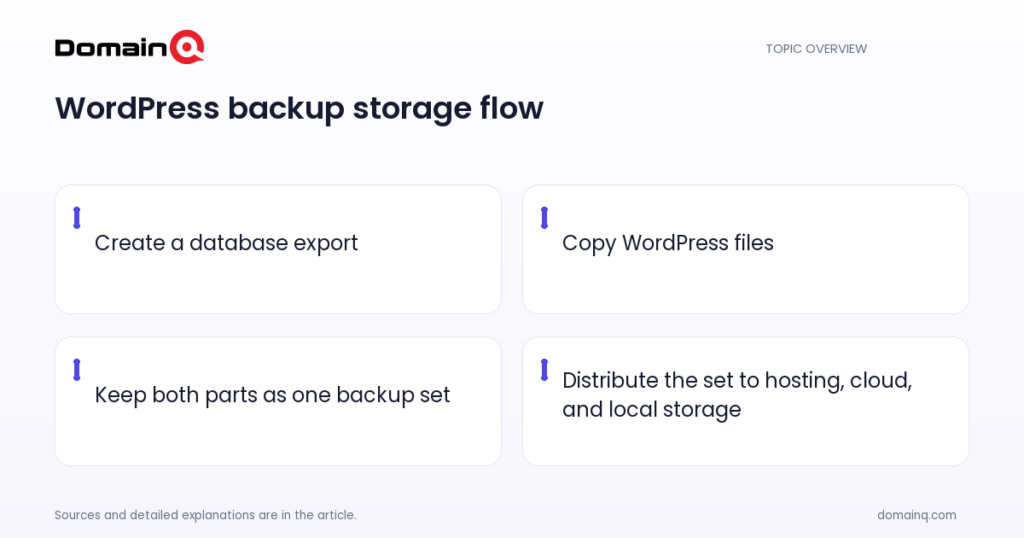
Store files and the database as one backup set
Keeping a file backup and a database export as unrelated, unclear copies can create confusion. For consistency, WordPress recommends treating them as one backup set and creating them around the same time. The typical order is to back up the database first and then the WordPress files.
In practice, you can use a clear naming approach with the same date and time information for each set. You may optionally keep the database export in the same folder or zip file as the file backup. This makes the two parts easier to move together and match in an archive, while not changing the fact that the database remains a separate file that must be imported during restoration.
Example scenario: For example.com, a database export is created first and the WordPress files are copied afterward. Both parts are kept under one backup set with the same date-and-time label. One copy of the set remains in the hosting space, while the same set is copied to other storage locations. The aim is not to leave only a file archive or only a database export.
- Back up the database first, then the WordPress files.
- Label both parts as one closely timed backup set.
- Consider placing the database export beside the file backup or in the same zip file.
Source: [1]
Why not rely only on the hosting server copy?
Hosting providers often back up the whole server, including your site. That can be a useful protection layer. However, requesting a copy of your site from the provider’s backups can take time, which can be limiting when speedy recovery matters.
For protection against data loss, WordPress recommends keeping at least 3–5 recent backups in different locations. Its examples are the hosting server, cloud storage, and a local computer. The same approach also includes using different media; WordPress gives CDs, DVDs, and hard drives as examples.
A local copy is a backup set downloaded to your computer. A remote copy is held in a location different from the hosting server, such as cloud storage. You can treat the copy on the hosting server as another layer. The central idea is not to leave all current copies in one place.
- Keep one copy on the hosting server.
- Keep a copy of the same backup set in cloud storage.
- Download one copy to a local computer.
- Store at least 3–5 recent backups across different locations.
Source: [1]
Keep the local copy organised and findable
You can copy files to a folder on your computer with an FTP client or UNIX shell. Once they are on the computer, the files can be compressed into a zip file to save space, which can make it easier to keep multiple versions.
Synchronisation tools can also keep a mirror copy of server content on a hard drive up to date. These tools can help maintain a local copy of the file side. Remember, though, that the WordPress database is in a separate system: a mirrored file copy does not replace a database export.
Rather than keeping randomly downloaded files in a local folder, separate your backup sets clearly. Keep the file archive and database export together for each set. Preserve the same set structure in the copy you send to cloud storage. This makes it easier to understand which two parts form a backup, where they are stored, and which version they represent.
- Use a separate local folder structure for backup sets.
- Keep the file archive and database export under the same set.
- Compress file archives with zip where appropriate.
- Remember that file synchronisation does not include the database export.
Source: [1]
Update the storage plan before changes
WordPress calls for regular database backups and for a backup before every upgrade or move to a new location. At those points, it is useful to plan not only the database export but also the current backup set that will be stored with the files.
If you also need to review whether the file and database parts are aligned in time before a move, use the checks in How to Check a WordPress Backup Set for Restoration. The focus here is not restoration steps, but where the sets you create should live across hosting, cloud storage, and a local computer.
Your storage arrangement does not need to be complex. Start by gathering both parts of every current set, copy them to cloud storage and a local computer in addition to the hosting copy, and make sure you can distinguish older sets from newer ones. This arrangement helps ensure that other copies are available when obtaining a provider backup may take time.
- Back up the database before an upgrade.
- Back up the database before moving to a new location.
- Copy both the file and database parts of the current set.
- Distribute copies across hosting, cloud storage, and a local computer.
Source: [1]
Practical checklist
- Confirm that you have both a file backup and a database export.
- Follow the usual order: database first, then WordPress files.
- Name the file and database parts as one closely timed backup set.
- Consider keeping the database export in the same folder or zip file as the file backup.
- Keep at least 3–5 recent backups.
- Distribute copies across locations such as the hosting server, cloud storage, and a local computer.
- Back up the database regularly and before an upgrade or move.
Instead of leaving a WordPress backup only on the server, gather the file copy and database export into one backup set. Then distribute current sets across different locations. The hosting server, cloud storage, and a local computer are the examples provided by WordPress. This reduces dependence on one storage location without overlooking that the database is separate from the files.
Frequently asked questions
Is downloading only the WordPress directory enough?
Usually not. The WordPress database is commonly kept in a separate database system such as MySQL or MariaDB, and downloading the WordPress directory does not normally back it up. A full restoration needs both files and the database.
Can I store the database export with the file backup?
Yes. A database export is a file and can be kept in the same folder or zip file as the file backup. During restoration, however, it still needs to be imported back into MySQL or MariaDB.
How many WordPress backups should I keep?
WordPress recommends keeping at least 3–5 recent backups in different locations to help protect against data loss.
Sources
[1] Backups – Advanced Administration Handbook | Developer.WordPress.org